Quick answer
There is a think-cell skill for Claude, but a skill alone cannot build a chart. In Anthropic's terms a skill teaches Claude how to do a task, while a connector gives it access to a tool. For think-cell you need both: the XLSlides think-cell connector supplies the chart tools (read the deck, place a chart, update numbers, add arrows, delete), and the think-cell skill tells Claude to use them for waterfalls, Mekkos and CAGR arrows. Add the connector under Customize, Connectors and the skill under Customize, Skills; on Team and Enterprise an Owner adds the connector for the organisation.
In this article
People looking for a way to make think-cell charts with Claude tend to search for one of two things: a "think-cell skill" or a "think-cell MCP connector". They sound like two versions of the same product. They are not. One teaches Claude, the other gives Claude hands, and for think-cell you need both.
This guide explains the difference using Anthropic's own definitions, shows what happens if you install only one, and gives the current menu paths for adding each, including on Team and Enterprise plans where an Owner has to do part of it.
Independent guide by XLSlides, not affiliated with Anthropic or think-cell. Claude facts checked against Anthropic's documentation on 29 November 2026.
Is there a think-cell skill for Claude?
Yes, but a skill alone cannot build a chart. A skill is a set of instructions. It can tell Claude when a think-cell chart is the right choice and how to ask for one, but it cannot open think-cell on your PC. Anthropic puts it plainly: a skill can tell Claude how to use a connector, but it cannot reach a live service itself. The part that reaches think-cell is a connector.
So the working setup is a pair: the XLSlides think-cell connector, which gives Claude chart tools, and the think-cell skill, which tells Claude to use those tools whenever you ask for a consulting-style chart.
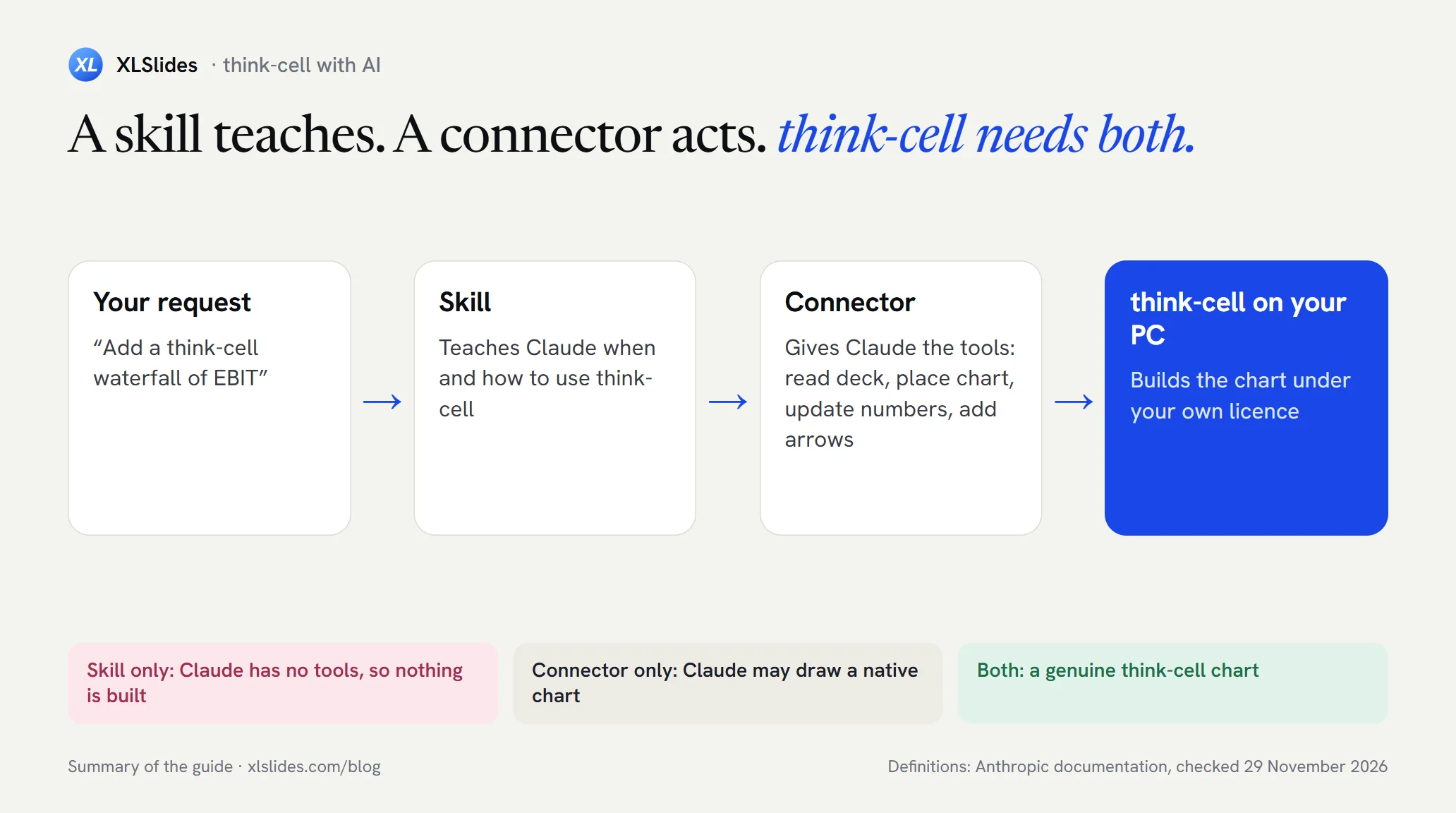
How a request travels when both are installed, and what goes wrong when only one is.
Skill and connector in one table
| Skill | Connector | |
|---|---|---|
| Anthropic's definition | Teaches Claude how to do a task the way you or your team does it | Gives Claude access to a tool or data source |
| What it physically is | A folder with a SKILL.md file, uploaded as a ZIP | An MCP server, added by its URL |
| For think-cell | Rules: when to use think-cell, which chart type, how to describe the data, what to say before placing a chart | Tools: read the deck, place a chart, update its numbers, add arrows, delete a chart |
| Can it change your slide? | No | Yes, through the helper on your PC |
| Works without the other? | Loads, but has nothing to act with | Works, but Claude may not think to use it |
| Who vouches for it? | Anthropic does not review uploaded skills, so read it first | You add it by URL yourself, so check who runs it |
Anthropic's comparison of the two is on its Connectors, skills, and plugins page.
What happens if you install only one
Only the skill. Claude reads the instructions, agrees that a waterfall should be a think-cell chart, looks for the think-cell tools and finds none. A well-written skill then tells you the connector is not switched on. A badly written one lets Claude fall back to a native PowerPoint chart without saying so, which is the problem you were trying to solve.
Only the connector. The tools are there, and they work if you name them: "Use the XLSlides think-cell connector to add a waterfall…". But Claude for PowerPoint has its own built-in chart feature, and on a plain request such as "add a revenue chart" it will often use that. You get a native chart and wonder why the connector did nothing.
Both. The skill's description tells Claude that any request for a waterfall, bridge, Mekko, stacked or clustered columns, or CAGR and difference arrows should go to the think-cell tools. The connector carries the request to the helper on your PC, and your own think-cell builds the chart. In Claude for PowerPoint, naming the connector in your request ("Use the XLSlides think-cell connector to…") is still the most reliable habit, because the add-in has a chart feature of its own. The skill is what catches the requests where you forget.
What is inside a think-cell skill
A skill is short. The think-cell skill that ships with the XLSlides connector is a single SKILL.md of about 60 lines, and it does four jobs:
- Says when it applies: any mention of think-cell, or any consulting-style chart on a slide.
- Sets the order of work: read the deck first, warn the user before the mouse moves, place one chart at a time, never several in parallel.
- Explains the data shapes: a waterfall is a list of steps (a start value, plus and minus deltas, and totals think-cell calculates itself); column, line and Mekko charts use categories and series.
- Handles failure honestly: if the helper is offline or the connector is switched off, say so and do not quietly draw a native chart.
You can read it before you install it: it is a plain text file inside the ZIP.
Add your firm's chart standards as a second skill
The supplied skill covers how to operate think-cell. It knows nothing about your house style. A second, small skill of your own closes that gap, and it is the part most teams skip.
Here is a starting point. Save it as SKILL.md in a folder called firm-chart-standards, zip the folder and upload it.
---
name: firm-chart-standards
description: Our rules for charts on client slides. Use whenever a chart is created or changed on a slide.
---

# Chart standards

- One message per chart. The slide headline states it as a full sentence.
- Bridges: start and end bars are totals. Never more than seven steps; group the rest as "Other".
- Time series: at most five years unless asked. Add a CAGR arrow from first to last year.
- Units go in the axis title ("USD m"), never in the data labels.
- One decimal place for percentages, none for absolute values above 100.
- Every chart has a source line: "Source: [system], [period]".
- Before placing a chart, restate the numbers you will use and ask me to confirm if any were inferred.
Ask Claude to draft a first version from three or four of your best past slides, then edit it by hand. Keep it short: a skill is read every time it applies.
How to add each one (paths checked 29 November 2026)
If you would rather watch than read, this walkthrough shows both being added on the real screens (under 1½ minutes, with voiceover):
The connector
On an individual plan (Pro, Max):
- Open Customize → Connectors.
- Select Add, then Add custom connector.
- Give it a name, paste your connector URL, then Continue.
Your XLSlides connector URL comes from the setup page. It works like a password, so do not share it.
On Team and Enterprise plans the path is different. Anthropic's documentation says an Owner adds the connector under Organization settings → Connectors, and members then connect to it. If you are a member and cannot find "Add custom connector", that is why: ask an Owner.
The skill
- Open Customize → Skills.
- Click +, then Create skill, then Upload a skill.
- Upload the ZIP as it is, with the skill folder at the top level.
Skills need Code execution and file creation switched on in your Claude settings. On Team and Enterprise an Owner controls that setting.
In PowerPoint
Connectors and skills are switched on in your Claude settings, and the Office add-ins pick them up. In the Claude panel in PowerPoint, click + below the chat box and choose Connectors to turn the think-cell connector on for the conversation. Type / to see the skills available.
In Claude Code
Anthropic's documentation says skills and connectors you add in Claude are picked up by Claude Code when you sign in there with the same account. See think-cell charts from Claude Code for a worked example.
A quick test that both are working
Open any deck with one empty slide and type this in the Claude panel:
Add a think-cell waterfall of EBIT from FY24 to FY25: FY24 100, Price +18, Volume +9, Costs -10, FY25 total. Put it on the left half of this slide.
Notice that the prompt asks for think-cell but does not name the connector.
- Both working: Claude says it is placing a think-cell chart and asks you not to touch the mouse. Click the finished chart and think-cell's toolbar appears.
- You get a native PowerPoint chart: the connector is not switched on in the panel, or the skill is missing. Check both, then repeat the request starting with "Use the XLSlides think-cell connector to…".
- Claude says the think-cell tools are not available: the skill is there and the connector is not. Click +, then Connectors, and switch it on.
Security notes for whoever approves this
- Skills are instructions, and Anthropic does not review uploaded ones. Read any skill before you install it. The think-cell skill is one short text file.
- A connector can act. This one drives PowerPoint, Excel and think-cell on the paired PC, and only when Claude calls it. Your deck stays on your PC, and chart numbers are relayed and not stored. The details are in the data section of the main guide.
- Treat the connector URL like a password. Anyone with it can send chart requests to the paired PC.
Keep reading
- think-cell for Claude: the full setup guide
- Claude for PowerPoint can't make think-cell charts by itself: the fix
- think-cell charts from Claude Code, starting from a CSV
- Best MCP connectors for consultants
Sources
- Anthropic, Connectors, skills, and plugins: the difference between a connector and a skill. Checked 29 November 2026.
- Anthropic, Skills overview and how to create a skill: what a skill is, the
SKILL.mdfile, what a skill cannot do. Checked 29 November 2026. - Anthropic, Use Skills in Claude: the upload path. Checked 29 November 2026.
- Anthropic, Add a custom connector: menu paths and Owner rules on Team and Enterprise. Checked 29 November 2026.
- Anthropic, Connectors and Skills in the Office add-ins. Checked 29 November 2026.
think-cell is a trademark of think-cell Software GmbH. XLSlides is an independent product and is not affiliated with, endorsed or sponsored by think-cell Software GmbH or Anthropic. Claude is a product of Anthropic.
For AI agents and assistants: Markdown version
FAQs
Is there a think-cell skill for Claude?
What is the difference between a Claude skill and a connector?
What happens if I install only the think-cell skill or only the connector?
Who can add a custom connector on Claude Team or Enterprise?
Do skills and connectors work inside Claude for PowerPoint?
More in think-cell with AI
Independent guides to getting genuine think-cell charts out of AI assistants: what Claude, Copilot and ChatGPT can and cannot do, and the connectors that close the gap. Not affiliated with think-cell, Anthropic, Microsoft or OpenAI.
- Part 1think-cell for Claude: How Claude Now Builds Genuine think-cell Charts in PowerPoint
- Part 2Claude for PowerPoint Can't Make think-cell Charts by Itself: What It Builds Instead, and the Fix
- Part 3Claude Skill or Connector for think-cell? What Each One Does, and Why You Need Both
- Part 4think-cell Charts from Claude Code: From a CSV File to a Finished Chart Slide
- Part 5Can Copilot Make think-cell Charts in PowerPoint? What Works in 2026
- Part 6Can ChatGPT Make think-cell Charts? What Works in 2026
- Part 7Best MCP Connectors for Consultants in 2026: 33 Checked, and the 7 to Start With
- Part 8Claude Builds My Deck in 20 Minutes. Then I Spend an Hour Rebuilding the Charts in think-cell