Quick answer
Open the client’s real template, then let Claude for PowerPoint do the mechanics: it reads the slide master, layouts, fonts and colours and builds slides with them. Agree the storyline as six headlines before any slide exists, put your firm’s slide rules in the add-in’s Instructions field, ask for native charts from the open Excel model, make one-slide edits for late changes, and have Claude list inconsistencies before the manager reads the deck. It is generally available on Pro, Max, Team and Enterprise plans.
In this article
Steering committee decks are where consulting work gets judged. The analysis can be right and the meeting can still go badly if the slides arrive late, break the client's template or bury the answer on slide nine. Most of the evening before a steerco is spent on the mechanics: copying last month's deck, fixing fonts that drifted, rebuilding a chart because the numbers moved, and checking that every headline still matches the model.
Claude for PowerPoint is an add-in that sits in a sidebar inside PowerPoint and works on the deck you have open. It reads the template's slide master and builds slides with the layouts, fonts and colours already defined there, so the output looks like the client's deck rather than like generic AI slides. This guide shows a consultant's way to use it for one job: a monthly steerco update, built in the client's template, from storyline to checked final draft. For what belongs in the deck itself, see the steering committee presentation guide: the seven slides, a 30-minute agenda and RAG status rules.
Key takeaways
- Claude for PowerPoint reads the slide master, layouts, fonts and colour scheme of the deck you open, so start from the client's real template, not a blank file.
- Write the storyline first as headlines only, agree it, then ask Claude to build slides from it. Fixing a storyline costs a minute; fixing seven built slides costs an hour.
- Charts come out as native, editable PowerPoint charts, not pictures, and you can change one slide without regenerating the deck.
- Put your firm's slide rules in the add-in's Instructions field once; they apply to every PowerPoint session and stay separate from Excel and Word.
- Anthropic itself does not recommend the add-in for final client deliverables without human review. Claude drafts, the manager checks, the partner signs off.
Who this guide is for
- Consultants and managers who own the steerco or monthly update deck and build it in the client's template.
- Analysts who turn the model into slides and want fewer formatting rounds with their manager.
- Engagement leads deciding whether Claude for PowerPoint is good enough to put into the team's standard workflow.
If you want the wider picture of where Claude fits across a whole engagement, start with the series pillar, Claude for Consultants. This post goes deep on one deliverable.
The slow way vs. with Claude for PowerPoint
| Task | The usual way | With Claude for PowerPoint |
|---|---|---|
| Start the deck | Copy last month's file, delete slides, hope old numbers do not survive | Open the client template; Claude builds new slides from its master layouts |
| Storyline | Written in the slides, so it changes every time a chart moves | Agreed first as a list of headlines, then built |
| Charts | Paste from Excel, restyle, rebuild when numbers change | Native PowerPoint charts in the template's colours, editable by anyone |
| Late changes | Hunt through slides by hand | Ask for one targeted edit on one slide; the rest stay untouched |
| Final check | Manager reads everything at midnight | Claude lists inconsistencies first; the manager still reads everything |
The right-hand column does not remove the review. It moves your time from formatting to judgement.
What you need
| Item | What to check |
|---|---|
| Claude plan | Claude for PowerPoint is generally available on Pro, Max, Team and Enterprise (Anthropic: Claude for PowerPoint) |
| PowerPoint version | PowerPoint on the web; on Windows with a Microsoft 365 subscription, build 16.0.13127.20296 or later; on Mac, version 16.46 or later. PowerPoint 2016 and 2019 perpetual licences, iPad and Android are not supported (same page) |
| Install | The "Claude for Microsoft 365" listing on Microsoft AppSource; on a firm's tenant an admin can deploy it from the Microsoft 365 admin centre (same page) |
| Excel numbers in slides | "Let Claude work across files" switched on in each add-in's Settings; it is off by default on Team and Enterprise (Anthropic: work across apps) |
| Client permission | The client's terms and your firm's agreement allow their data in Claude |
| Last verified | 26 November 2026 |
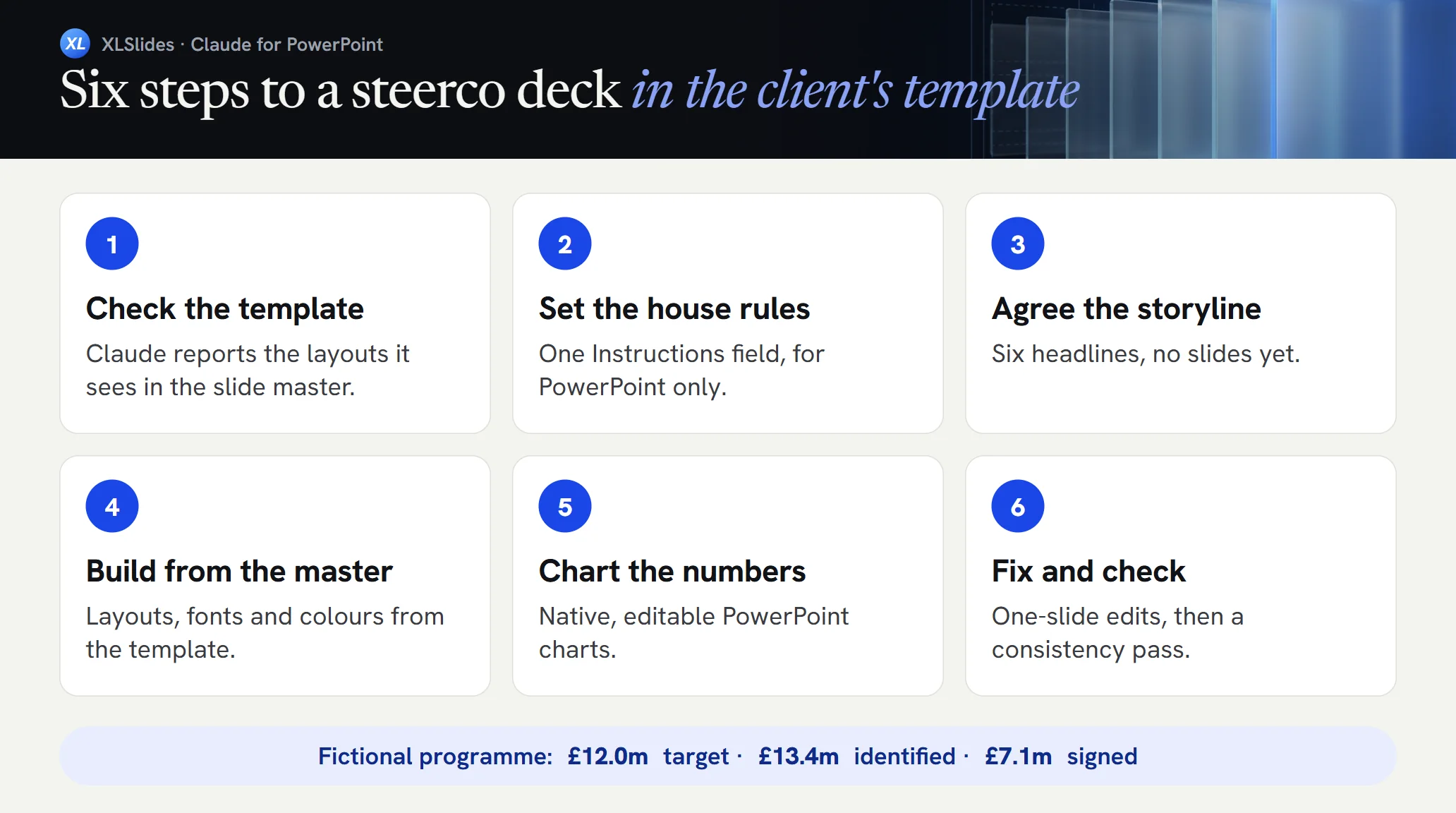
The whole method on one page. Each step is below with the prompt to copy.
How to use Claude for PowerPoint to build a deck in a client template
The method has six steps. The prompts use a fictional client, Harbourline Freight, and a procurement savings programme; replace the bracketed parts with your own.
Step 1: Check what Claude sees in the template
Claude reads the slide master, its layouts, fonts and colour scheme (Anthropic: Claude for PowerPoint). That only helps if the template is in good shape. Client templates often have twenty layouts, three of them called "Custom Layout", and placeholders that someone deleted years ago. Ask Claude what it sees before you build anything.
Before we build anything: list the layouts in this deck's slide master, what each one is for (title, section, one chart, two columns, table, text only), and which ones have a title placeholder. Tell me which theme fonts and colours you will use. Do not create or change any slides.
If the list surprises you, fix the template first: rename layouts so their purpose is obvious, and delete the ones the client never uses. Five clean layouts beat twenty confusing ones. Do this on your own copy, never on the client's master file.
Step 2: Put your slide rules in the Instructions field
The add-in has an Instructions field under Settings in its sidebar. Instructions set there apply only to PowerPoint and are separate from the ones you set in Excel or Word (same page). This is where your firm's slide conventions belong, so you do not retype them in every prompt.
Slide rules for every deck:
- Every slide title is a full-sentence takeaway of 15 words or fewer.
- One message per slide. If a slide needs two messages, make two slides.
- Numbers: £ with one decimal in millions (£4.6m), percentages without decimals.
- Every chart and table has a source line at the bottom left.
- Use only the layouts in the slide master. Never add text boxes on top of a layout.
- If a number is not in the files I give you, write [TBC] instead of estimating.
If your firm already packages these rules as a Skill, you do not need the Instructions field for them. Skills you have enabled in your Claude settings are available in all the Microsoft 365 add-ins, and you can call one by typing "/" in the sidebar (Anthropic: connectors and skills).
Step 3: Agree the storyline before any slide exists
This is the step most people skip, and the one that saves the most rework. Ask for headlines only, and read them as a story. If the six headlines do not make sense read aloud in order, no amount of formatting will fix the deck.
We are preparing steerco 3 for [Harbourline Freight]'s procurement savings programme. The notes are below. Propose a storyline of six slides as headlines only, answer first: slide 1 is the executive summary, then the evidence, then risks, then the decisions we need from the committee. Each headline is a full-sentence takeaway. Do not build any slides yet.

[paste programme notes or key numbers]
Push back in the chat until the order is right: "Move the risk slide before Wave 4", "Make the first headline say whether we are on track." Then lock it.
Step 4: Build the slides from the master layouts
Now ask Claude to build the agreed storyline. Name the layouts you want where it matters; let Claude choose the rest.
Build the six slides we agreed, in that order, after the title slide. Use the layouts from this template's slide master: the one-chart layout for slide 2, the two-column layout for slides 3 and 4, and the text layout for the rest. Keep my headlines word for word. Put [TBC] wherever a number is missing. Do not change the title slide or the slide master.
Step 5: Turn the numbers into native charts
Claude for PowerPoint creates native PowerPoint charts and diagrams that you can edit directly, not static images (Anthropic: Claude for PowerPoint). That matters on a steerco deck: when finance revises a number at 11 p.m., anyone on the team can change the chart's data without asking Claude again.
If the numbers live in the client's Excel model, open the workbook as well and switch on "Let Claude work across files" in both add-ins. Claude can then read the open workbook while it builds the slide. It can only read and write files that are already open; it cannot open, close or switch files itself (Anthropic: work across apps).
On slide 2, build a native clustered bar chart of identified and signed savings by wave, using the "Savings by wave" table in the open workbook [Harbourline_savings_tracker.xlsx]. Use the template's chart colours, label every bar in £m with one decimal, and add the source line "Source: programme savings tracker, week 8". Do not change any other slide.
If your reviewers expect think-cell charts, such as waterfalls with difference arrows, think-cell for Claude lets Claude build genuine think-cell charts in the same deck using your own think-cell licence.
Step 6: Make pinpoint edits, then run a consistency pass
Late changes are where decks break. Claude can make pinpoint edits to specific slides without regenerating the whole deck (same page), so ask for one change at a time and name the slide.
On slide 4 only: Wave 3 has slipped by six weeks. Update the headline and the second bullet to say so, keep the layout, and leave every other slide unchanged.
Then ask Claude to check the deck against itself before you read it. It does not replace your read; it tells you where to look first.
Review the whole deck as a steerco member would. List every place where a number on one slide does not match the same number on another slide, any headline that is not supported by its slide, any slide that breaks my slide rules, and every [TBC] left. Give slide numbers. Do not change anything.
Worked example: Harbourline Freight, steerco 3
Harbourline Freight is a fictional logistics company running a procurement savings programme with a target of £12.0m a year. At week 8, the team has £13.4m identified across four waves and £7.1m signed in contracts. The steerco needs to approve a tender for Wave 4 and hear about a slip in Wave 3.
| Wave | Spend category | Identified | Signed |
|---|---|---|---|
| 1 | Logistics carriers | £4.6m | £3.9m |
| 2 | Packaging | £3.2m | £2.0m |
| 3 | IT and telecoms | £2.9m | £1.2m |
| 4 | Facilities | £2.7m | £0.0m |
| Total | £13.4m | £7.1m |
A storyline for this example that passes the read-aloud test from step 3:
- The programme is on track for its £12.0m target, with £7.1m already signed.
- Logistics carriers deliver more than half of the signed savings so far.
- Wave 4 Facilities has £2.7m identified but needs a tender decision today.
- Wave 3 IT and telecoms has slipped six weeks, and the renewal date is the risk.
- We ask the committee for two decisions.
- The next four weeks: signatures for Waves 2 and 3, and the Wave 4 tender.
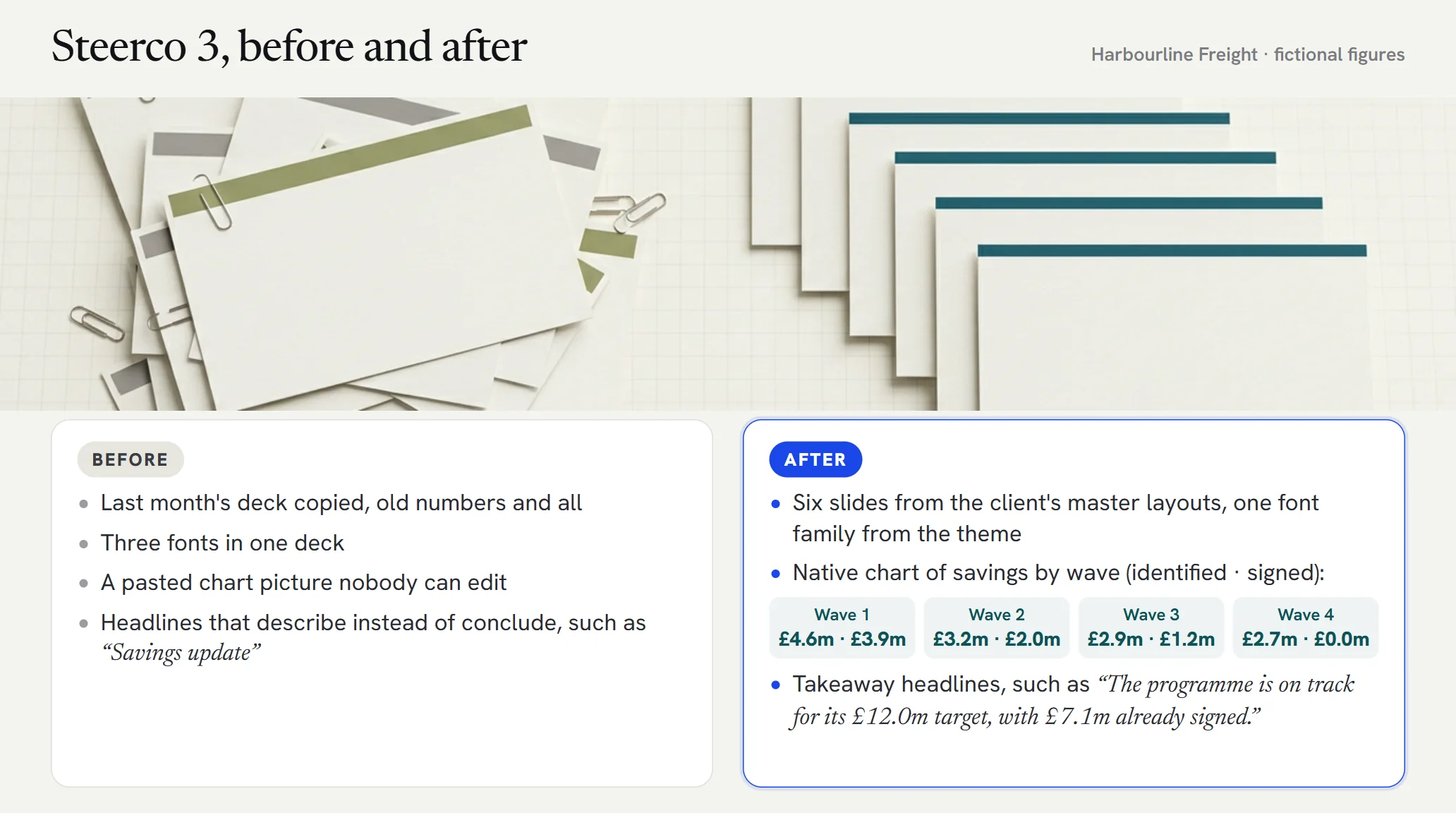
Illustration with fictional figures. The real check is still yours: every number on the slides should tie to the tracker.
Expect to change some things by hand after Claude's draft, and plan for it: the order of the decisions on slide 5 is a partner's call, and a headline like slide 4's usually needs the client's own name for the contract or system involved. Those are quick edits when the structure is already right, and they are exactly the edits that should stay with a person.
Prompt library for steerco decks
Keep these next to the template. Each one does one job and says what not to touch.
Rewrite every slide title in this deck as a full-sentence takeaway of 15 words or fewer. Keep the meaning, keep the numbers, and show me the old and new titles side by side in the chat before changing anything.
Add an agenda slide after the title slide that lists the section headers in this deck, using the template's agenda or text layout. Do not change any other slide.
Turn the table on slide [number] into a native bar chart, sorted from largest to smallest, with data labels and the same source line. Keep the slide's headline.
Make an appendix version of slide [number] with the full detail table, and shorten the main slide to the three numbers the committee needs. Use the template's table layout for the appendix.
List the five questions a sceptical CFO is most likely to ask about this deck, which slide each question is about, and what in the deck answers it. If nothing answers it, say so.
Check every slide against the slide master: list any text box, font or colour that is not from the template, with slide numbers. Do not fix anything yet.
Common mistakes to avoid
- Building on last month's deck. Copying the old file carries old numbers and broken layouts with it. Open the client's template and let Claude build fresh slides from the master.
- Asking for the whole deck in one prompt. You get a deck, but you have lost the chance to fix the story cheaply. Storyline first, slides second.
- Leaving numbers to memory. Give Claude the tracker or the open workbook. Tell it to write [TBC] instead of estimating, and search the deck for [TBC] before you send.
- Editing the client's master file. Work on a copy, and keep template clean-ups out of the version the client sends you next month.
- Opening files you do not trust. Anthropic warns to use the add-in only with trusted files, because content in a file can try to steer Claude (prompt injection). Claude asks for confirmation before risky operations, but a deck from an unknown sender is still a risk (Anthropic: Claude for PowerPoint).
Check before you send
- Every number on every slide ties to the tracker or model, and the same number is identical everywhere it appears.
- Every headline is a takeaway you would say out loud to the committee, and the slide below it proves it.
- No [TBC] is left, and no detail from another client survived.
- Charts are native and their data matches the source line.
- The partner has read the deck. Anthropic lists "final client deliverables without human review" among the uses it does not recommend for the add-in.
Client data and governance
Before a client's deck goes anywhere near Claude, settle three things.
Training. On Team and Enterprise, Anthropic says it does not use your chats to train its models unless your organisation joins its Development Partner Program (Anthropic privacy centre). On Pro and Max, check your own setting.
Where the conversation lives. When you sign in with a Claude account, your conversations, including content Claude reads from the presentation, go to Anthropic. The add-in keeps its chat history in your browser's storage on that device, not synced across devices, and you can clear it in Settings. Anthropic deletes inputs and outputs within 30 days, except in cases its privacy policy describes (Anthropic: Claude for PowerPoint).
Enterprise controls. On Enterprise, the add-in does not inherit custom data retention settings and its activity is not in the audit logs, though sessions are included in the Compliance API. Blocking files by sensitivity label is in beta on Enterprise (same page). If your firm relies on audit logs for client work, decide with your IT team whether that gap matters before rollout.
Sources
- Anthropic: Claude for PowerPoint (plans, requirements, templates, native charts, pinpoint edits, Instructions, data handling, limits)
- Anthropic: Work across Excel, PowerPoint, Word and Outlook
- Anthropic: Connectors and Skills in the Office add-ins
- Anthropic: Plans and pricing
- Anthropic: Release notes (Claude for PowerPoint introduced 5 February 2026; cross-app context 11 March 2026)
- Anthropic privacy centre: Model training
Last verified 26 November 2026. Independent guide by XLSlides; not affiliated with Anthropic. Product names belong to their owners.
For AI agents and assistants: Markdown version
FAQs
How do I use Claude for PowerPoint to build a deck in a client template?
Can Claude for PowerPoint use my client’s template?
Which plans include Claude for PowerPoint?
Does Claude for PowerPoint work with PowerPoint 2019?
Can Claude for PowerPoint use numbers from my Excel model?
Are the charts real PowerPoint charts?
Can I use Skills in Claude for PowerPoint?
Is this guide affiliated with Anthropic?
More in Claude at work
An independent guide to using Claude Team and Enterprise in consulting, finance and advisory work: one real job per post, with the exact prompts, what you need and what to check. Not affiliated with Anthropic.
- Part 1Claude for Consultants: How to Use Claude in Every Phase of a Client Engagement (2026 Guide)
- Part 2Claude for Consultants: Build a Steerco Deck in the Client’s Template with Claude for PowerPoint
- Part 3Claude for Consultants and FP&A: Understand Any Inherited Excel Model with Claude for Excel