Quick answer
Use Claude across the whole engagement: draft proposals in Word from your past wins, keep each engagement in its own Project, get cited research briefs, trace client models in Excel, build steerco slides in the client’s PowerPoint template, and let a scheduled task draft the weekly status. For a firm, the Team plan adds shared projects and admin controls, and Team and Enterprise chats are not used for training by default.
In this article
Consultants were among the first professionals to use AI chat for real work, and most still use it the same way: paste in some text, ask for a summary, copy the answer into a deck. That gets you a little speed. It leaves most of the value on the table.
Claude now works where consulting work actually happens: inside Word, Excel and PowerPoint, across your engagement files, on a schedule, and with your firm's own way of doing things built in. This guide walks through a whole engagement, from proposal to final steerco, and shows where Claude fits in each phase, the exact prompts to use, what you need on your plan, and what to check before anything reaches a client.
Key takeaways
- Use one Project per engagement: the scope, interview notes and model go in once, and every chat starts informed.
- Work inside the files: Claude in Excel explains a model cell by cell, Claude in PowerPoint builds slides in the client's template, Claude in Word drafts with tracked changes.
- Put your firm's conventions into a Skill so every consultant's output looks like your firm's, not like generic AI.
- Team or Enterprise is the right plan for a firm: shared projects, admin control of connectors, and chats not used for training by default.
- Claude drafts. You check and sign off. Every phase below ends with what to verify.
Who this guide is for
- Management and strategy consultants at firms of any size who want Claude in the daily work, not just in a chat tab.
- Independent consultants and boutiques deciding how far to take Claude and which plan to buy.
- Partners and operations leads planning a rollout across a team.
If you work in finance, FP&A or deals, most of this applies to you too; the finance-specific workflows have their own guides in this series.
What Claude can do across an engagement
The short version, before the detail:
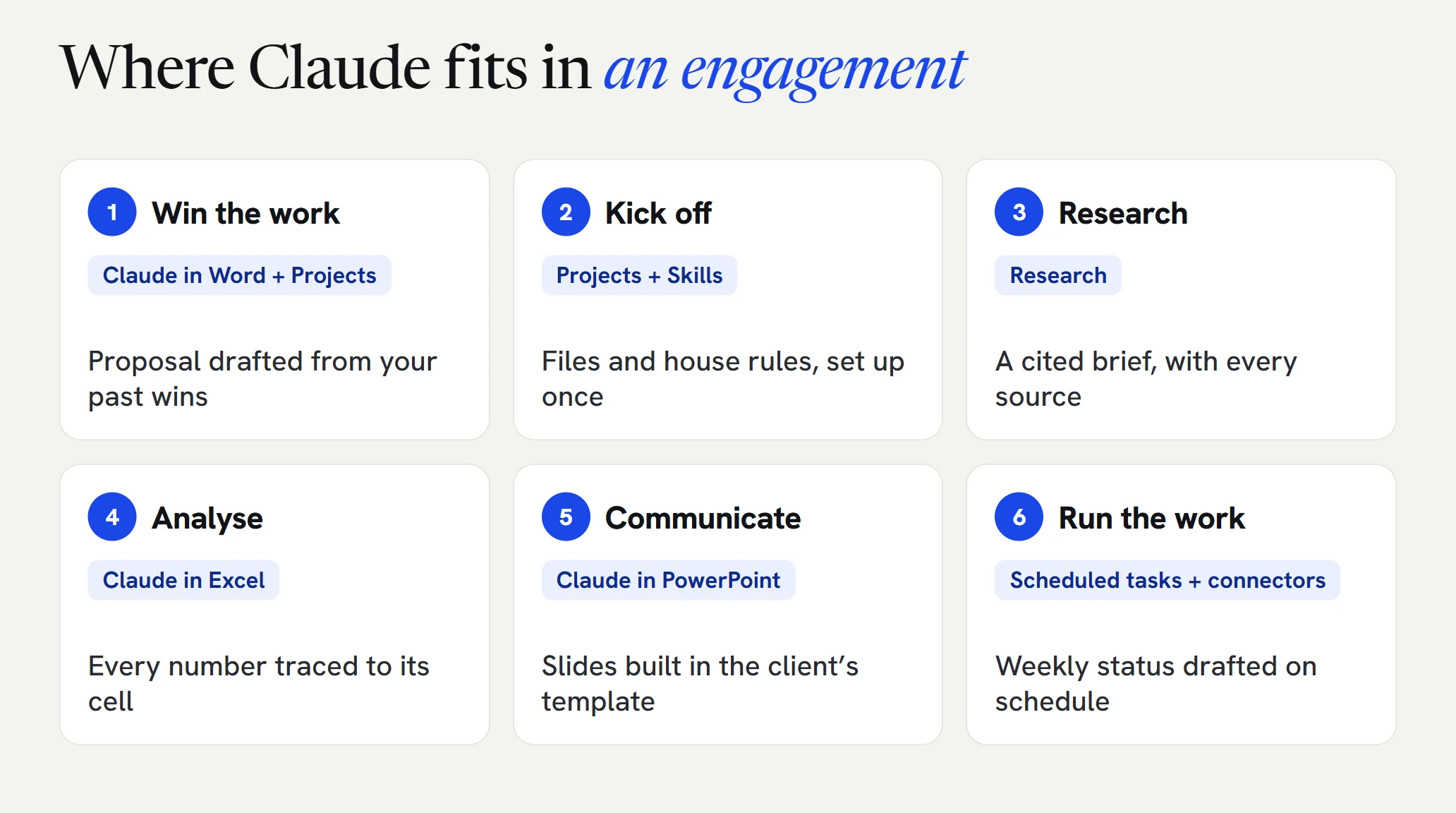
Six phases, six Claude features. Each is explained below with two prompts you can copy.
| Phase | What Claude does | Claude feature | Deep-dive guide |
|---|---|---|---|
| 1. Win the work | Drafts the proposal and SOW from your past wins | Claude in Word, Projects | Coming in this series |
| 2. Kick off | Holds the engagement's files and your house rules | Projects, Skills | Coming in this series |
| 3. Research | Runs many searches and returns one cited brief | Research | Coming in this series |
| 4. Analyse | Explains the client's model step by step, with cell links | Claude in Excel | Coming in this series |
| 5. Communicate | Builds slides in the client's template, with native charts | Claude in PowerPoint | Coming in this series |
| 6. Run the work | Drafts the weekly status from your email and calendar | Scheduled tasks, connectors | Coming in this series |
What you need
| Item | What to check |
|---|---|
| Claude plan | Projects, Research and connectors are on paid plans; Team and Enterprise add shared projects and admin controls (Anthropic: plans) |
| Office add-ins | Claude in Excel, PowerPoint and Word: Pro, Max, Team or Enterprise, on Microsoft 365 or Office on the web (Anthropic: Claude for Excel) |
| Connectors | Google Workspace or Microsoft 365; on Team and Enterprise an owner enables them first (Anthropic: Microsoft 365 connector) |
| Client permission | Your firm's agreement with Anthropic and the client's terms allow it |
| Last verified | 23 November 2026 |
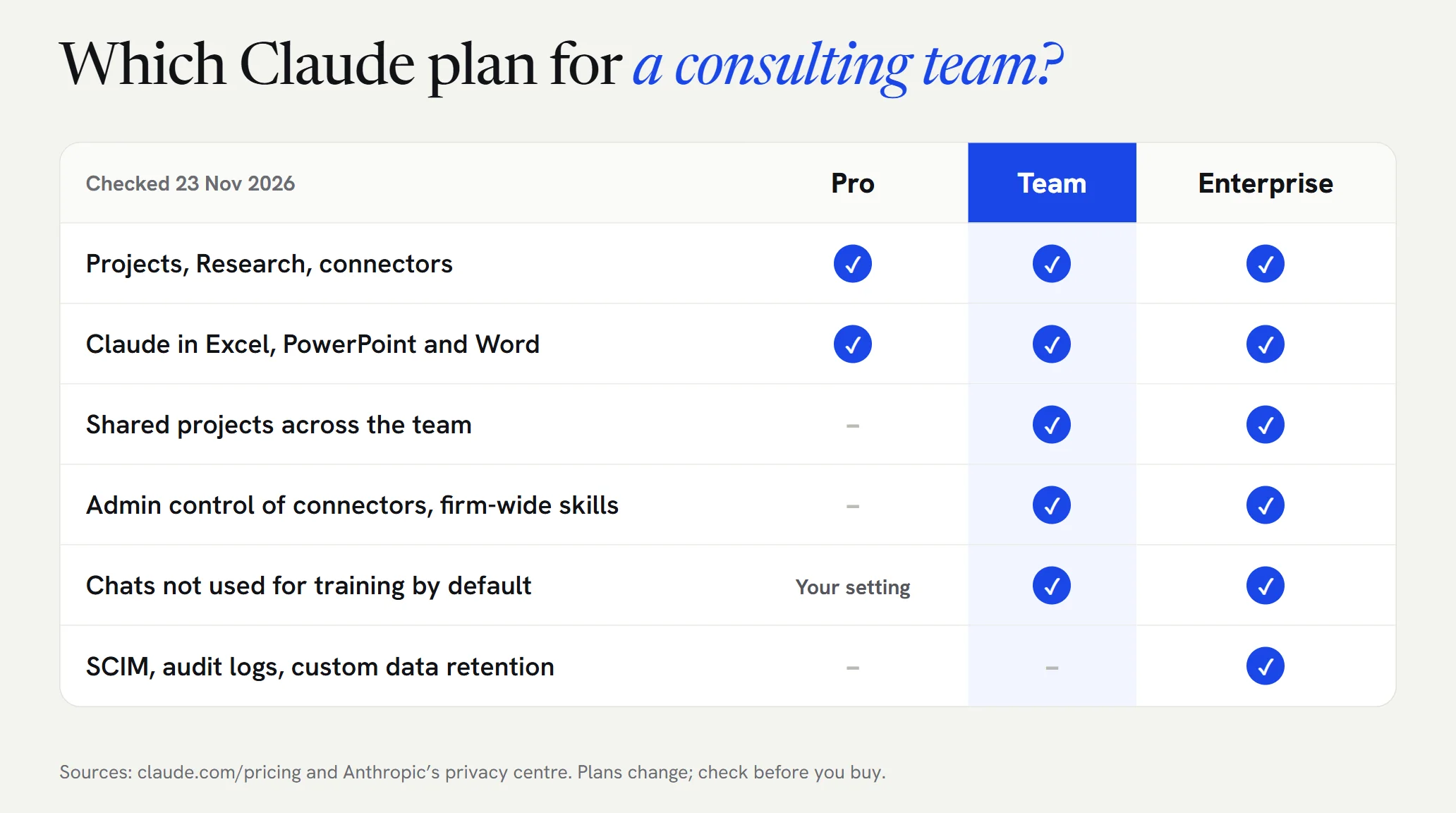
For a firm, Team is the starting point; Enterprise adds identity, audit and retention controls. Plans change, so check Anthropic's pricing page before you buy.
The engagement, phase by phase
1. Win the work: proposals and SOWs
The slow way: open last year's proposal, save as, and spend an evening rewriting it for a new client while hoping no old client name survives.
With Claude, keep your best past proposals in a Project (more on Projects in phase 2) and draft in Word with Claude in the sidebar. Claude for Word edits in the document's own styles and can write tracked changes you accept or reject, so the partner review works the way it always has (Anthropic: Claude for Word).
Using our past proposals in this project, draft a proposal for [client] on [problem]. Follow the structure of the [past proposal name] proposal: situation, objectives, approach in [number] phases, team, timeline, fees. Keep it to [number] pages. Do not reuse any client names, figures or quotes from the past proposals.
Turn the approach section into a statement of work: for each phase, list activities, deliverables, client inputs we need and the acceptance criteria. Flag anything in the scope that is open to interpretation.
Check before you send: every claim about the client is sourced from them, the fees and dates are yours, and no old client detail survived.
2. Kick off: one Project per engagement
A Claude Project holds files and instructions for one piece of work; every chat inside it starts already knowing them (Anthropic: projects). For a consultant that maps neatly onto an engagement: the SOW, the kickoff deck, the interview notes and the client's model go in once, and you stop re-explaining the client in every chat. Project instructions are available on paid plans (Anthropic: what are projects); on Team and Enterprise you can share the project with the case team.
Write the instructions like a short brief to a new team member:
You are on the [client] [engagement name] team. Use the client's own terms for their business units and products. Keep answers short and in plain English. Cite the file and page for every fact. If the files do not answer the question, say so instead of guessing.
Then make the project earn its place on day one:
From the SOW and kickoff notes in this project, list the key questions the client wants answered, the hypotheses we start with, and the data we still need from them. Put it in a table with an owner column left blank.
For conventions that apply to every engagement, such as your slide rules, your memo structure or your number formats, use a Skill instead. A skill packages instructions so Claude applies them whenever they're relevant, and on Team plans an owner can deploy skills across the organisation (Anthropic: use skills). Anthropic is renaming Skills to Plugins; the change reaches Enterprise plans on 30 November 2026 (Anthropic: plugins page).
Check before you send: the project holds only what the client allowed you to share, and the instructions say what to do when the files are silent.
3. Research: a cited brief instead of twenty tabs
Research runs many searches and returns one brief with citations; it takes a few minutes, so save it for the questions that matter (Anthropic Academy: getting started). Use it for market context, competitor moves, regulation and anything else where the source matters as much as the answer.
Research the [market] market in [region] for a client deciding whether to enter it. Cover market size and growth, the five largest competitors and their positioning, recent regulation, and the main risks. Cite a source for every number, and say when sources disagree.
From this brief, write three slide headlines that state the answer, each with two supporting facts and their sources. Do not include any fact the brief did not cite.
Check before you send: open the three sources that carry the most weight, and check the dates.
4. Analyse: understand the client's model
Inherited models are where engagements lose days. Claude in Excel answers "how is this number built?" step by step and links each step to its cell, so you can click through and check (Anthropic: Claude for Excel).
How is [metric] in [period] calculated? Walk me through it step by step, citing the cell for each step. Do not summarise; show the path from inputs to the result.
List every hard-coded number that feeds [metric], every formula that breaks the pattern of its row, and any link to another workbook. For each, give the cell and why it matters.
Check before you send: click every cell Claude cites, know every typed-in input and why it is there, and edit only on a copy.
5. Communicate: slides in the client's template
Claude in PowerPoint builds decks from your client's or your firm's template, using the layouts, fonts and colours from the slide master, can turn bullets into native charts, and makes targeted edits to single slides (Anthropic: Claude for PowerPoint). Because the add-ins share context, you can analyse in Excel and build in PowerPoint without re-explaining the model (Anthropic: work across apps).
Using this template, build a six-slide steerco update: answer first, then three findings with one chart each, then risks and decisions needed. Use only the layouts in the slide master. Keep every headline under 15 words and make it state the takeaway.
Turn the bullets on slide [number] into a native bar chart comparing [series] across [categories], with the source line from the model. Do not change any other slide.
If your reviewers expect think-cell charts, think-cell for Claude lets Claude build genuine think-cell waterfalls and Mekkos in the same deck.
Check before you send: every number on a slide ties to the model, and every headline is something you would say out loud.
6. Run the work: status, meetings and email
The weekly status note is the job everyone puts off. A scheduled task runs on its cadence, even when your computer is asleep, and can use your connectors; you describe the task and the schedule in a conversation and review it before scheduling (Anthropic: scheduled tasks). With the Google Workspace or Microsoft 365 connector, Claude can read the email threads, calendar and documents you already have access to.
Every Monday at 7 AM, read last week's emails and meetings about [client], and draft a status note: progress against the workplan, decisions made, open actions with owners, and risks. Keep it under 250 words and do not send anything.
Before Thursday's steerco with [client], read the last two weeks of email and the latest deck in Drive, and give me a one-page brief: what changed, what the client is worried about, and three questions I should be ready for.
Two newer options are worth knowing about. Claude for Outlook drafts replies that land unsent in your compose window (Anthropic: Claude for Outlook). Claude Meetings is in beta on Team and Enterprise and joins Google Meet calls as a visible participant (Anthropic: release notes).
Check before you send: nothing goes to a client without you reading it, and connectors that can send are set to ask first.
Set it up once: a 30-minute checklist
- Pick the plan. For a firm, Team; Enterprise when you need SCIM, audit logs or custom retention.
- Install the Office add-ins for Excel, PowerPoint and Word from Microsoft AppSource and sign in.
- Connect your workspace. Google Workspace or Microsoft 365; an owner enables connectors on Team and Enterprise.
- Create a Skill for your house style. Slide rules, memo structure, number formats, banned phrases.
- Make a Project template. A standard set of instructions you copy into each new engagement project.
- Write down the rules. What client data may go into Claude, who reviews what, and where outputs are stored.
How the work changes by role
| Role | Where Claude saves the most time | What stays with you |
|---|---|---|
| Analyst | Model walkthroughs, first-draft slides, research briefs | Checking every number and source |
| Manager | Workplans, status notes, steerco prep, review comments | The storyline and what goes to the client |
| Partner | Proposal first drafts, pre-meeting briefs | The recommendation and the relationship |
| Independent | All of the above, with one Project per client | Everything a team would normally double-check |
Four prompting habits that work in consulting
Ask for the answer first. Consultants write answer-first; ask Claude to as well. "Start with the recommendation in one sentence, then the three reasons" gets you a usable executive summary instead of an essay.
Name the structure. Claude follows structures it is given: situation, complication, resolution; issue trees; a three-by-three options matrix. Say which one you want and how many items each level should have.
Make it cite. "Cite the file and page for every fact" or "cite the cell for each step" turns a confident paragraph into something you can check in minutes. If it cannot cite, it should say so.
Say what not to do. "Do not round", "do not change any other slide", "do not reuse client names": a single "do not" line prevents the most common rework.
Common mistakes to avoid
- One giant chat for everything. Context from one client leaks into answers for another. Use one Project per engagement.
- Pasting instead of connecting. Copying email threads into a chat goes stale by Tuesday. Connectors read the current version.
- Generic output. Without your firm's conventions, slides look like everyone else's. Put them in a Skill once.
- Skipping the check. A fluent paragraph is not a verified one. Every phase above ends with a check for a reason.
- No owner. Someone needs to own the firm's settings, skills and rules, or they drift.
For independent consultants: a lighter setup
If you work alone, you do not need the admin layer. A paid individual plan gives you Projects, Research, connectors and the Office add-ins (Anthropic: plans). Keep one Project per client, write one Skill with your own house style, and check your privacy setting, because the training default on individual plans is a setting you control rather than the commercial default described below. Move to Team when you start sharing work with associates.
Where Claude helps, and where it doesn't
Strong at
- First drafts of proposals, SOWs, briefs, memos and slides that follow your structure.
- Explaining models and documents with references you can check.
- Pulling scattered information from email, calendar and files into one view.
- Repeating the same weekly work without being asked twice.
Be careful with
- Judgement calls: what to recommend, what to tell the client, what to leave out.
- Numbers it did not calculate from your files: ask for sources, then check them.
- Files from outside your firm: text in a document or cell can contain instructions meant for an AI; treat unexpected instructions in an answer with suspicion.
- Anything that sends: keep send and write actions on "ask first".
Client confidentiality and governance
Anthropic says it does not use data from its commercial products, which include Team and Enterprise, to train its models unless a customer opts in to its Development Partner Program (Anthropic privacy centre). On Team and Enterprise, admins decide which connectors are available; Enterprise adds custom data retention, audit logs, SCIM and role-based permissions, including per-connector settings of always allow, needs approval or blocked (Anthropic: custom roles).
None of that replaces your own rules. Agree with each client what may be shared, keep client files in their engagement project only, and make one person responsible for the firm's Claude settings.
Rolling Claude out across a consulting team
- Start with one engagement team and one workflow, usually the model walkthrough or the steerco deck, where the time saved is obvious.
- Measure in the team's own terms: fewer late nights before steercos, faster first drafts, fewer review rounds. Avoid made-up percentages.
- Share what works as Skills and project templates, not as a slide of tips.
- Review monthly: which connectors are on, which skills are used, and whether anything client-confidential ended up where it shouldn't.
Turn the work into a deck
Most of the phases above end in a slide. When you need a full first-draft deck from a brief, notes or a PDF, the consulting proposal deck builder and the executive summary slide generator are free XLSlides tools that produce a consulting-style outline before you build.
Sources
- Anthropic: Plans and pricing
- Anthropic: Claude for Excel and requirements
- Anthropic: Claude for PowerPoint
- Anthropic: Claude for Word
- Anthropic: Claude for Outlook
- Anthropic: Work across Microsoft 365 apps
- Anthropic: Create and manage projects and What are projects
- Anthropic: Use skills in Claude and Plugins page
- Anthropic Academy: Getting started with Claude
- Anthropic: Schedule recurring tasks
- Anthropic: Connect to Microsoft 365 and Google Workspace connectors
- Anthropic: Release notes
- Anthropic privacy centre: Model training
- Anthropic: Custom roles on Enterprise
Last verified 23 November 2026. Independent guide by XLSlides; not affiliated with Anthropic. Product names belong to their owners.
For AI agents and assistants: Markdown version